
Produce Cooking Show Highlights with AI Voice Generator in CapCut Desktop Video Editor
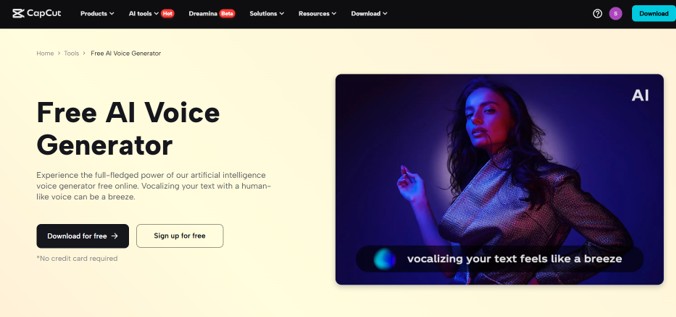
Mumbai, 05 August 2025: Whether you are a food creative, hopeful chef, or food influencer, your readers do not only want to see delicious recipes but an interesting story that you are going to share. The AI voice generator in CapCut Desktop Video Editor is perfect to satisfy this demand. Whether you are working on cutting overshareable snippets to share on Instagram or creating step-by-step recipes on YouTube, or making a recipe channel, CapCut AI Technology features help you create cooking show highlights that seem professional, warm, and easy to follow.
Now, let’s find out how to transform ordinary kitchen video materials into compelling food tales with CapCut PC.
Why Culinary Creators Need Captivating Video Highlights
The online world of winning content is fast-paced, and people do not have good attention spans. Highlighting cooking videos. Good visuals are not the only thing that is required in cooking videos. They must have crisp pacing, narration that is succinct, and voiceover that gives flavour to the visual recipe.
Upon implementation of AI voiceovers, viewer retention is achieved, complicated methods are explained, and non-native creators can access broader audiences. Thanks to CapCut and its convenient functionalities of adding synthetic voices that sound natural, anyone could make captivating culinary tutorials, even though they could feel shy in front of a camera.
Why Use an AI Voice Generator in Cooking Videos
The AI Voice Generator is of assistance to culinary creators in several ways:
- Time Saver: There is no need to get protracted narrations and simply write in the script.
- Maintains quality: Remove mic noise or audio input distortion.
- Multilingual Reach: To appeal to different audiences, the use of varied options in voice should be applied.
- Tone Variety: Select voice tones such as Peaceful Female or Energetic Male according to your mood of cooking.
These features are especially beneficial for creators working on tight schedules or managing solo food channels.
How to Create Cooking Show Highlights on CapCut PC
Here’s a step-by-step guide to creating cooking highlights with CapCut AI Voice Generator and other optimisation tools.
Launch Your CapCut Project
The first step is to download and install CapCut PC using the authorised website.
Launch the application and select “Create project” and give a name to your project, e.g., Sunday Roast Tutorial or Express Stir-Frying.
Import Cooking Footage
Click “Import”, then upload your pre-recorded kitchen clips, and afterwards, upload your pre-recorded kitchen clips. It could be a one-shot food preparation or several portions with ingredients, cooking, introducing a dish to a plate, and dragging them to the timeline.
Add AI Voice Generator Narration
So, to make your cooking success story real, you need to invest in describing it with a voiceover, where CapCut AI Voice Generator comes in handy.
Start by clicking on the top menu bar on the tab called “Text“, then use Text to speech AI. Copy the voiceover script that you prepared into the input field given. Once your script is uploaded, you have to select a voice that fits your writing style. “Energetic Male“ works well on fast-paced or high-energy videos; “Peaceful Female“ is a nice choice in case you require something calmer and educative. After the voice is generated, you can adjust the place of the audio on the timeline so that it fits with the visuals.
Enhance Video Quality
Then, to boost the aesthetic quality of your raw videos, go to the “Video“ tab, open the basic option, and turn on the “Enhance quality“ option. You can upscale your video resolution to HD 720p or HD 1080p. You can use the preview window and make sure that the new visuals go well with your narration.
Export and Share Your Video
Click “Export”, then select MP4, then select resolution to be 1080p, which produces the best playback quality. There is also an option to publish your final video to such popular landing websites as YouTube, TikTok, or share it as a blog post. CapCut also has an in-built handy option of sharing, which allows the creation of a direct sharing link and sharing over social media with ease.
Tools That Boost Culinary Video Quality
CapCut has more AI capabilities besides narration, which help improve the quality of production. The AI Video Upscaler is one such tool. It comes in handy particularly when:
Old or Low-Res Clips: Clarify recycled material.
Food Close-Ups: Spice up melted cheese or sautéed onions.
Overhead Shots: Provide an edge to wide-angle steps in a recipe picture.
The combination of voiceovers and AI Video Upscaler would allow ensuring the correlations between the sound and visuals, which could help to attract and keep the audience.
Make Every Recipe a Visual Delight
The recipes and how-tos are not the only way to use a video where cooking is involved; it is an experience. Using the CapCut AI Voice Generator, you humanise your food imagery; with this voice, people will relate to and associate with it. It does not matter whether you lead your viewers through a 60-second omelette or a five-minute gourmet recipe; voiceovers and upgraded images will turn your work into something really professional.
With a streamlined narration workflow and enhanced visual quality, CapCut Desktop Video Editor allows individual creators, small businesses, and food chefs to produce food content that is all about binging.
Conclusion
As everyone in the world knows, a cooking brand lives and dies by visual storytelling, so tools such as CapCut can allow users to concentrate on the recipes themselves, leaving the work of narrating and enhancing artificial intelligence. And thus, in case you are not afraid of a warm bowl of soup anymore and you are all set up to film your next food coda masterpiece, begin by trying the AI Voice Generator, and then proceed to put your creations to speech to understand what they are trying to say.
Have you got an appetite to take your next dish to a digital level? CapCut PC is your assistant chef of the story.